Connectors
beCPG provides a set of connectors to export data from the PLM to various formats and external systems. Connectors are Spring Boot applications that can be run in standalone mode, scheduled mode, or as part of a Spring Cloud Dataflow pipeline.
Available Connectors
| Connector | Description | Output Format |
|---|---|---|
| CSV Connector | Export entities and their datalists to CSV files | CSV |
| GS1 Connector | Export products to GS1 GDSN XML (Catalogue Item Notification) | XML (GS1 CIN) |
| Equadis Connector | Export products to Equadis format | XML |
| Salsify Connector | Export products to Salsify (SupplierXM) | JSON |
Prerequisites
Before you begin, ensure you have the following installed:
- Java 17 or later
- Access to a beCPG instance with valid credentials
- For HTTPS connections with self-signed certificates, see Annex I: Certificate Installation
Versions
| Connector | Version | beCPG Connector API | Changes |
|---|---|---|---|
| CSV Connector | 1.0.3 | 4.1.6 | Add document extraction feature |
| GS1 Connector | 3.1.33.0 | 4.1.6 | Updated GDSN XSDs (September 2025) |
| Equadis Connector | 1.0.0 | 4.1.6 | Initial version |
| Salsify Connector | 1.0.0 | 4.1.6 | Initial version |
Compatibility with beCPG
This documentation covers the new generation of connectors (version 4.x). The compatibility with beCPG versions is as follows:
| Mode | Minimum beCPG Version | Minimum API Version | Description |
|---|---|---|---|
| Channel Mode | 23.4.2 | 3.3 | Use Publication Channels to select entities |
| Query Mode | 4.2.3 | 3.5 | Use search queries to select entities |
Note: For beCPG versions prior to 4.2.3, only Channel Mode is supported.
Legacy Connectors
For older beCPG versions (prior to 23.4.2), please refer to the legacy connector documentation.
| Connector Generation | beCPG Version | Documentation |
|---|---|---|
| New (4.x) | >= 23.4.2 | This document |
| Legacy (3.x) | < 23.4.2 | connector_old.md |
Common Configuration
This section covers configuration options shared across all beCPG connectors.
Installation
- Request the connector distribution archive from beCPG support (e.g.,
becpg-csv-connector-x.x.x-distribution.zip) - Download and unzip the connector archive
- Configure the
application.propertiesfile in theconfigfolder
Running the Connector
Linux
./becpg-connector.sh
Windows
Double-click on becpg-connector.bat
Docker
docker run --rm -v "$PWD":/usr/becpg-connector -v "$PWD"/data:/usr/becpg-connector/data -w /usr/becpg-connector/data \
   openjdk:17 java -Dfile.encoding=UTF8 \
   -jar /usr/becpg-connector/lib/becpg-connector.jar --spring.profiles.active=sample
Maven
mvn spring-boot:run -Dspring-boot.run.arguments=--spring.profiles.active=dev
Configuration Methods
1. Using application.properties
Use the application-sample.properties file in the config folder as a template. Rename it to application-{profile}.properties.
2. Managing Profiles
Create multiple application-{profile}.properties files for different configurations. Specify the profile at startup:
--spring.profiles.active=sample
3. Overriding Parameters
Parameters can be overridden directly in the startup script using the Java -D option:
java -Dcontent.service.url=https://server.becpg.local:443 \
     -Dconnector.dest.path="./data" \
     -jar ./lib/becpg-connector.jar --spring.profiles.active=sample
4. Via beCPG Publication Channels
Connectors can be configured directly in the beCPG UI:
- Go to beCPG Administration → Edit: Characteristics
- Select Publication channels in the left panel
- Add or edit a channel and provide configuration in JSON format:
{
  "properties": {
    "connector.notify.enabled": false,
    "connector.notify.from": "support@becpg.fr",
    "connector.notify.to": "ops@becpg.fr"
  }
}
Server Connection (Mandatory)
content.service.url=https://your-becpg-instance:443
content.service.security.basicAuth.username=username
content.service.security.basicAuth.password=password
Destination Path (Mandatory)
connector.dest.path=.
Warning: On Windows, use
C:\\Temp\\becpg-connectororC:/Temp/becpg-connector
Entity Selection
Connectors operate in two modes: Query Mode or Channel Mode.
Query Mode
Enabled if connector.query.template is defined. Uses a search query where %s is replaced by the date of the last successful import (stored in the lastImport file).
connector.query.template=(@cm\\:created:[%s TO MAX] OR @cm\\:modified:[%s TO MAX]) AND ( ASPECT:\"bcpg:productAspect\" OR TYPE:\"bcpg:client\" OR TYPE:\"bcpg:supplier\" )
Channel Mode
Default mode if no query template is provided. Entities are selected in beCPG by adding them to the corresponding Publication Channel.
connector.channel.id=your-channel-id
Data Extraction
Fields to extract are defined via three main properties:
remote.fields=bcpg:eanCode,cm:title,bcpg:legalName
remote.lists=bcpg:allergenList,bcpg:ingList
remote.params={"appendCode":false,"appendNodeRef":false}
You can also define extra fields and lists:
remote.extra.fields=ca:customfield1,ca:customfield2
remote.extra.lists=testList,exampleList
Delivery Protocols
Defined via connector.send.protocol. Multiple protocols can be used (comma-separated): local, ftp, ftps, sftp, remote.
connector.send.protocol=local,sftp
connector.send.deleteOnSuccess=false
SFTP Configuration
connector.send.sftp.host=
connector.send.sftp.port=22
connector.send.sftp.login=
connector.send.sftp.password=
connector.send.sftp.destFolder=
Local Configuration
connector.send.local.destFolder=
Remote Configuration
connector.send.remote.destNodeRef=workspace://SpacesStore/XXX
Notifications
connector.notify.enabled=true
connector.notify.from=support@becpg.fr
connector.notify.to=admin@company.com

spring.mail.host=localhost
spring.mail.port=25
spring.mail.username=
spring.mail.password=
spring.mail.properties.mail.smtp.auth=true
spring.mail.properties.mail.smtp.starttls.enable=true
Post-Connector Actions
Execute actions after the connector has run:
connector.channel.onSuccess.remote={"attributes": {"bcpg:productState": "Simulation"}}
connector.channel.onError.remote=
General Formatting
connector.decimalFormat=#.####
connector.dateFormat=dd/MM/yyyy
connector.field.assocSeparator=|
Debugging
logging.level.fr.becpg.connector=INFO
logging.level.fr.becpg.connector.readers=DEBUG
logging.level.fr.becpg.connector.writer=DEBUG
logging.level.fr.becpg.connector.notifiers=DEBUG
Or via command line:
-Dconnector.debug.level=debug
SSL Configuration
Disable SSL verification (for testing only):
remote.ssl.trustAll=true
Compatibility
Compress headers when the list of fields is too long:
remote.compress.param=true
Scheduler Mode
Run the connector periodically based on a CRON expression:
spring.batch.job.enabled=false
connector.scheduler.enabled=true
connector.cron.expression=0 0/5 * * * ?
Backup Configuration
connector.dest.path.shouldCreateBackup=true
CSV Connector
The CSV Connector exports beCPG entities and their associated lists or documents into CSV files based on configurable mappings.
CSV-Specific Properties
| Property | Type | Description |
|---|---|---|
connector.csv.extension |
String | Output file extension (Default: .csv) |
connector.csv.format |
String | CSV format (e.g., Excel, NoQuoteFormat) |
connector.csv.mandatoryFields |
List | Entities missing these fields will be skipped |
connector.csv.appendToExistingFiles |
Boolean | Append to existing files (Default: true) |
connector.csv.mergeExistingFiles.key |
String | Only unique rows (based on this key) are appended |
connector.csv.xlsxMapping |
String | Path to an Excel mapping file |
CSV Formats
| Format | Delimiter | Quote | Separator | Description |
|---|---|---|---|---|
(beCPG) |
; |
" |
\r\n |
Excel-like format with ; separator. Quotes are forced |
NoQuoteFormat |
; |
\r\n |
Semicolon-delimited. Values are not quoted; escapes with \ |
|
EXESS |
\t |
System | Tab-delimited format. No quotes; escapes with \ |
|
@GP |
; |
System | Semicolon-delimited, no quotes, trailing delimiter. Escapes with \ |
|
Excel |
, |
" |
\r\n |
Standard Excel CSV format (comma-delimited) |
InformixUnloadCsv |
, |
" |
\n |
Values not quoted; NULL is \N. Escapes with \ |
MongoDBCsv |
, |
" |
Comma-delimited; quotes only if needed | |
MySQL |
\t |
\n |
Tab-delimited; NULL is \N. Escapes with \ |
|
Oracle |
, |
" |
Comma-delimited; trimmed values | |
PostgreSQLCsv |
, |
" |
\n |
Comma-delimited with LF line separator |
RFC4180 |
, |
" |
\r\n |
Comma separated format as defined by RFC 4180 |
TDF |
\t |
" |
\r\n |
Tab-delimited format |
For more details: https://commons.apache.org/proper/commons-csv/apidocs/org/apache/commons/csv/CSVFormat.html
Mapping Configuration
Via application.properties
Use the prefix mapping.csv.<entityType>. By default, the filename matches the type.
# Basic mapping
mapping.csv.bcpg_finishedProduct=bcpg:code,cm:name,cm:title

# Custom filename
mapping.csv.bcpg_finishedProduct.fileName=Export_Products

# Specific headers
mapping.csv.bcpg_finishedProduct.headers=ID,Name,Description

# Multiple files for same type (indexed from 0 to 9)
mapping.csv.bcpg_finishedProduct.0.fileName=File_1
mapping.csv.bcpg_finishedProduct.0=bcpg:code,cm:name
mapping.csv.bcpg_finishedProduct.1.fileName=File_2
mapping.csv.bcpg_finishedProduct.1=bcpg:erpCode,cm:productUnit

# Mapping multiple types with an alias
mapping.csv.bcpg_rawMaterial.alias=article
mapping.csv.bcpg_semiFinishedProduct.alias=article
mapping.csv.article=bcpg:code,cm:name,bcpg:productHierarchy1|bcpg:erpCode
Via Excel Mapping File
Set connector.csv.xlsxMapping=./config/mapping.xlsx. Each tab represents a CSV file.
| Section | Value Example | Description | |
|---|---|---|---|
| TYPE | bcpg:finishedProduct |
Entity type(s) to export. Supports type1,type2 or `type\ |
list` |
| HEADER | ERP Code |
CSV Headers. Supports Excel formulas | |
| FILTER | props["bcpg:erpCode"]!=null |
Filter entities using SpEL expression | |
| COLUMNS | bcpg:erpCode |
Mapping fields. Use #MyValue for fixed values |
|
| # | Comment |
Ignored during export |
Example:
| TYPE | bcpg:finishedProduct | ||||
|---|---|---|---|---|---|
| HEADER | ADDDESCRIPTION | ADDIDENTIFICATION | ADDITIONALDESCRIPT | BARCODETYPE | BRANDNAME |
| COLUMNS | cm:title | bcpg:erpCode | cm:description | #EAN-13 | bcpg:trademarkRef |
Field Export Configuration
Nested Fields
Use the pipe | to export properties from associations:
bcpg:productGeoOrigin|bcpg:geoOriginISOCodeNumeric
Multilingual Fields
Append the language code after the field name:
cm:description_en: Description in Englishbcpg:legalName_ja_JP: Legal name in Japanese
Document Extraction
Use doc, document, or share prefixes in your mapping:
doc|<sourcePath>;<destPath>: Download matching documents. Column is hidden in CSVdocument|<sourcePath>;<destPath>: Download and write the local path in CSVshare|<sourcePath>: Write a public share URL in CSV
Example:
document|/Images/*.jpg;images/${entity.bcpg:code}-${document.cm:name}
Placeholders:
${entity|bcpg:code}: Entity property value${document.cm:name}: Document name${document.path}: Document path${document.id}: Document ID
List Export Configuration
Export associated lists by defining specific mappings. Fields prefixed with entity| export properties from the main entity.
mapping.csv.nutList=entity|bcpg:code,bcpg:nutListNut,bcpg:nutListValue,bcpg:nutListUnit
mapping.csv.packagingList=entity|bcpg:code,bcpg:packagingListProduct,bcpg:packagingListQty
Special List Fields
Nutrient List
nut["Code"]ornut["Code"]("locale"): Get rounded values (e.g.,nut["ENER-KJO"]("EU"))- Available rounded fields:
roundedValue_locale,roundedSecondaryValue_locale,roundedValuePerServing_locale,roundedMini_locale,roundedMaxi_locale,roundedGDAPerc_locale,roundedValuePerContainer_locale,roundedGDAPercPerContainer_locale
Required mapping:
mapping.csv.nutList=bcpg:nutListNut|gs1:nutrientTypeCode,bcpg:nutListRoundedValue
Claim List
claim[Code]: Returns "true" if criteria are respected (e.g.,claim[ORGANIC_GS1])
Required mapping:
mapping.csv.labelClaimList=bcpg:lclLabelClaim|bcpg:labelClaimCode,bcpg:lclClaimValue,bcpg:lclComments
Ingredient List
ingLabelingList[label]|value: Returns manual labeling if provided, otherwise formulatedingLabelingList[label]|manualValue: Manual labeling onlyingLabelingList[label]|formulatedValue: Formulated labeling only
By default, HTML is removed. Add @ at the end to keep HTML.
Required mapping:
mapping.csv.ingLabelingList=bcpg:illManualValue,bcpg:illValue,bcpg:illGrp|bcpg:lrLabel
Allergens
voluntaryAllergen/inVoluntaryAllergen: Legal names separated by commasvoluntaryAllergen|code/inVoluntaryAllergen|code: Codes separated by commasvoluntaryAllergen_en: Legal names in English
Required mapping:
mapping.csv.allergenList=bcpg:allergenListAllergen|bcpg:allergenCode,bcpg:allergenListAllergen|bcpg:legalName,bcpg:allergenListVoluntary,bcpg:allergenListInVoluntary
Other Lists
listName[0]|prop: Property of item 0 in the list (e.g.,compoList[0]|bcpg:compoListQty)
SpEL Formulas
Use the formula| prefix for complex logic:
# Property access
formula|props["bcpg:erpCode"]

# Access via associations (escape | with \\|)
formula|props["bcpg:clients\\|cm:title"]

# Condition logic
formula|props["qty"] != null ? props["qty"] / props["total"] : props["qty"]

# Formatting numbers
formula|(new java.text.DecimalFormat("#.###")).format(props["qty"])
For more information: http://docs.spring.io/spring/docs/3.2.x/spring-framework-reference/html/expressions.html
Code Mapping
Via application.properties
mapping.bcpg_productState.map=Valid|VALIDATED,Simulation|SIMULATION
Via Excel Mapping File
Add a sheet named Mapping:
| TYPE | Mapping | ||
|---|---|---|---|
| COLUMNS | field | sourceValue | destValue |
| VALUES | bcpg_productState | Valid | VALIDATED |
| VALUES | bcpg_productState | Simulation | SIMULATION |
Mandatory Fields
connector.csv.mandatoryFields=bcpg:useByDate,bcpg:unitPrice
Entities missing these fields will not be extracted.
Document Connector Plugin
Activate the document extraction plugin:
connector.plugin.class=fr.becpg.connector.plugin.StandardDocumentVisitor
Configure document mappings:
mapping.document.bcpg_finishedProduct=/Images/produit.jpg|img_${bcpg:erpCode}.jpg;/Documents/${cm:name} - Technical Sheet.pdf|TS_${bcpg:erpCode}.pdf
Format: <source path>|<destination path> separated by ;
Workflow Connector Plugin
Export workflows and their tasks in CSV format:
connector.plugin.class=fr.becpg.connector.plugin.WorkflowCSVVisitor
Available mappings:
mapping.csv.workflow_instances=id,name,title,description,isActive,startDate,priority,message,endDate,dueDate,initiator.userName
mapping.csv.workflow_tasks=workflowInstance|id,workflowInstance|name,id,state,name,title,description,bpm:completionDate,bpm:workflowDueDate
Filter workflows:
connector.query.template=startedAfter=%sZ
Possible filter values: state, initiator, priority, dueBefore, dueAfter, definitionId, definitionName, startedBefore, startedAfter, completedBefore, completedAfter, exclude
Multilevel Connector Plugin
Extract entities with their composition data lists in multilevel format:
connector.plugin.class=fr.becpg.connector.plugin.MultiLevelCSVVisitor
This plugin extracts the composition of a semi-finished product in a finished product or the composition of a semi-finished product in another semi-finished product and so on. It also enables you to see the level of each component.
Example - Composition of a finished product:
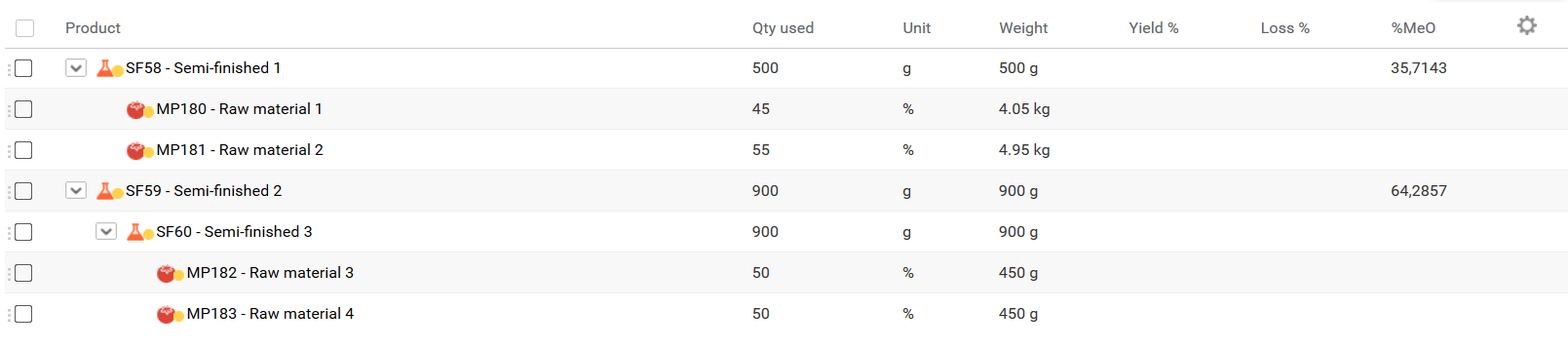
Features
- Extracts the composition of semi-finished products within finished products
- Shows the level of each component
- Calculates quantities at product level
- Calculates packaging values (products per PCB, boxes per pallet at each level)
- Calculates the quantity of packaging used for each product
- Extracts dynamic characteristics (prefixed with
dyn_)
Example: Property "qty multilevel" becomes dyn_qty_multilevel
For more information on dynamic characteristics, see Recipe Formulation - Formulated Characteristics.
Quantity Calculation
The level of semi-finished C is equal to 3. So, to calculate its quantity at product level, we must first calculate the quantity of semi-finished B at product level using a rule of three:
Semi-finished B QTY = (Semi-finished B Weight / Semi-finished A Weight) * Semi-finished A Weight at product level
- Weight of semi-finished A = sum of its components (found in formulated characteristics)
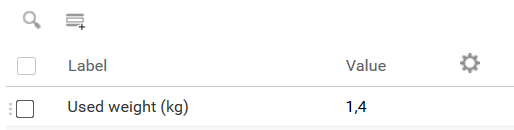
- Semi-finished B QTY = (0.31 / 0.66) × 5 = 2.348 kg
That result is the quantity you will use to calculate the quantity of semi-finished C, and so on as you go down in the composition level.
Detailed example:
- Quantity of semi-finished B at product level => after calculation = 2.348 kg
- Semi-finished B weight = 0.17 kg
- Semi-finished C quantity used in the composition of semi-finished B = 0.1 kg
- The quantity of semi-finished C used at product level = (0.1 / 0.17) × 2.348 = 1.381 kg
The method to calculate the quantity of raw material at product level follows the same logic.
Configuration
As in the standard connector, to activate the multilevel connector:
connector.plugin.class=fr.becpg.connector.plugin.MultiLevelCSVVisitor
As the plugin is only dedicated to finished and semi-finished products, CSV files won't work with other entity types (clients, suppliers, etc.). The search query should be configured accordingly:
connector.query.template=(@cm\\:created:[%s TO MAX] OR @cm\\:modified:[%s TO MAX]) AND ( TYPE:\"bcpg:finishedProduct\" OR TYPE:\"bcpg:semiFinishedProduct\")
GS1 Connector
The GS1 Connector exports beCPG products to GS1 GDSN XML (Catalogue Item Notification), with optional delivery to Atrify or Synkka.
GS1-Specific Configuration
Core Settings
| Property | Type | Description |
|---|---|---|
remote.gs1.locales.supported |
String | Supported locales (e.g., fr,en,de) |
remote.gs1.providerName |
String | Data provider name |
remote.gs1.providerGln |
String | Provider GLN (13 digits) |
remote.gs1.senderGln |
String | Sender GLN (often same as provider) |
remote.gs1.receiverGln |
String | Receiver GLN (GS1 interface) |
remote.gs1.sendImages |
Boolean | Include images in export (Default: false) |
remote.gs1.codesLanguage |
String | Language for GS1 code values (e.g., en) |
Advanced Settings
| Property | Type | Description |
|---|---|---|
remote.gs1.editGpc |
Boolean | GPC editing flag |
remote.gs1.noInnerPack |
Boolean | Skip inner packaging info |
remote.gs1.sendNutritionalPerServing |
Boolean | Include nutritional info per serving |
remote.gs1.selectiveIngList |
Boolean | Use boolean field to filter ingredients |
Field Mapping
Rename fields per environment using sourceQName|targetQName pairs:
remote.fields=bcpg:eanCode,gs1:depth,gs1:width,gs1:height
remote.extra.fields=specific:depth,specific:width,specific:height
remote.fields.map=gs1:depth|specific:depth,gs1:width|specific:width,gs1:height|specific:height
Synkka Integration
synkka.key=your-api-key-here
synkka.baseUrl=https://api.synkka.example
Example Configuration
content.service.url=https://dev.becpg.fr:443
content.service.security.basicAuth.username=connector
content.service.security.basicAuth.password=secret

connector.channel.id=gs1
connector.dest.path=target/gs1

remote.gs1.locales.supported=fr,en
remote.gs1.providerName=beCPG
remote.gs1.providerGln=0000000000000
remote.gs1.senderGln=0000000000000
remote.gs1.receiverGln=0000000000000

remote.fields=bcpg:eanCode,cm:description,gs1:depth,gs1:width,gs1:height
For detailed field mapping, see the MAPPING.md file in the connector distribution.
Equadis Connector
The Equadis Connector exports beCPG products to Equadis in XML format.
Equadis-Specific Configuration
| Property | Type | Description |
|---|---|---|
connector.channel.id |
String | ID of the beCPG channel (Default: equadis) |
connector.equadis.prettyPrint |
Boolean | Enable indented XML output (Default: true) |
connector.equadis.showComments |
Boolean | Add XML comments indicating mapping source (Default: true) |
Filename Format
Pattern: products_<code>_<ddMMyy_HHmm>.xml
<code>:bcpg:erpCodeif present, otherwise the entity code
Mapping Conventions
The connector uses an Excel mapping file with HEADER and COLUMNS sections.
Header Paths
Pattern: parent1/parent2/.../FIELDID
Special Prefixes and Suffixes
#MULTI: Prefix on a FIELDID to iterate over an array#MULTIGROUP: Prefix on a parent to create repeatable groups@<lang>: Suffix on field IDs to add language attribute
Example Mapping
| HEADER | COLUMNS |
|---|---|
product/NAME |
cm:name |
product/DESCRIPTION@fr |
cm:description@fr |
PACKS/#MULTIGROUPPACK/GTIN |
bcpg:eanCode |
For detailed field mapping, see the MAPPING.md file in the connector distribution.
Salsify Connector
The Salsify Connector exports products from beCPG to Salsify (SupplierXM) via the public Salsify API.
Salsify-Specific Configuration
API Settings
| Property | Type | Description |
|---|---|---|
remote.salsify.baseUrl |
String | Salsify API base URL (e.g., https://apis.supplierxm.salsify.com) |
remote.salsify.client.id |
String | Salsify API Client ID |
remote.salsify.client.secret |
String | Salsify API Client Secret |
GS1 & Localization
| Property | Type | Description | ||
|---|---|---|---|---|
remote.gs1.locales.supported |
String | Supported locales (e.g., `fr\ | fra-FR,en\ | eng-GB`) |
remote.gs1.providerName |
String | GS1 data provider name (Default: beCPG) |
||
remote.gs1.labelling.group.name |
String | Name of the labelling group |
Additional Fields
The connector can send specific fields even if they are absent in beCPG:
remote.salsify.rulesActivate,remote.salsify.rulesDesactivateremote.salsify.scaleDescriptionText,remote.salsify.incotermCoderemote.salsify.palletpackagingTypeCode,remote.salsify.palletIsOrderableUnitremote.salsify.ownerMarketGLN,remote.salsify.ownerMarketNameremote.salsify.depthProduct,remote.salsify.widthProduct,remote.salsify.heightProduct
Templates and Mapping
JSON rendering uses FreeMarker templates. Ensure your remote.fields align with the template and your Salsify data model.
Key Field Mappings
bcpg:eanCode,cm:title,gs1:functionalName,cm:description- Unit flags:
gs1:isTradeItemABaseUnit,gs1:isTradeItemAConsumerUnit - Dimensions/weights:
gs1:depth,gs1:width,gs1:height,bcpg:netWeight - Target markets:
gs1:targetMarkets|gs1:targetMarketCountries - Allergens/ingredients/nutrition:
bcpg:allergenList*,bcpg:ingList*,bcpg:nutList*
Docker Deployment
FROM eclipse-temurin:17-jre
WORKDIR /app
COPY target/becpg-salsify-connector-*.jar app.jar
ENV JAVA_OPTS=""
ENTRYPOINT ["sh","-c","java $JAVA_OPTS -jar /app/app.jar"]
docker run --rm \
  -e REMOTE_SALSIFY_CLIENT_ID=XXXXX \
  -e REMOTE_SALSIFY_CLIENT_SECRET=YYYYY \
  -e SPRING_PROFILES_ACTIVE=dev \
  becpg-salsify-connector:local
For detailed field mapping, see the MAPPING.md file in the connector distribution.
Troubleshooting
Common Issues
- No files generated: Verify
connector.channel.idand that the channel returns entities - Authentication failures: Verify
content.service.securitycredentials - File not written: Check
connector.dest.pathpermissions - Headers missing/duplicated: If
HEADERis set in Excel, the writer won't auto-generate fromCOLUMNS - Document extraction failed: Confirm
sourcePath;destPathformat and check logs
Error Handling
- Automatic Retries: Maximum 3 retries on network timeouts
- Error Recovery: Individual entity processing errors don't fail the entire batch
- Validation: Schema validation before writing/sending
Annex I: Certificate Installation (Windows)
Getting the beCPG server certificate:
- On Firefox, click on the lock icon
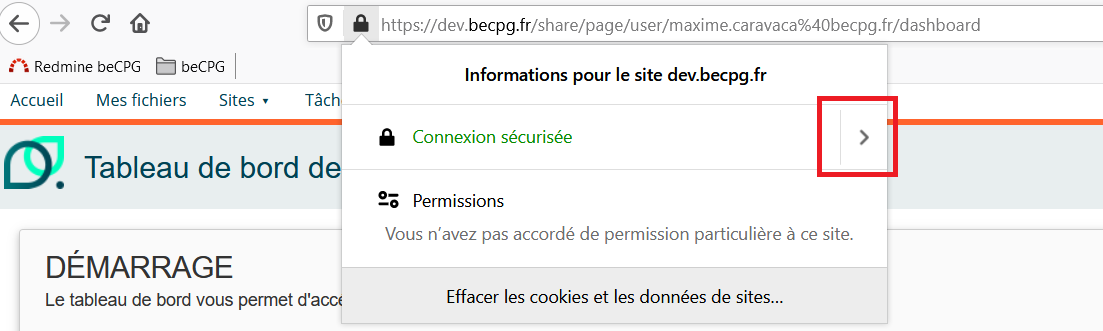
- Click on the arrow at the right of connection status
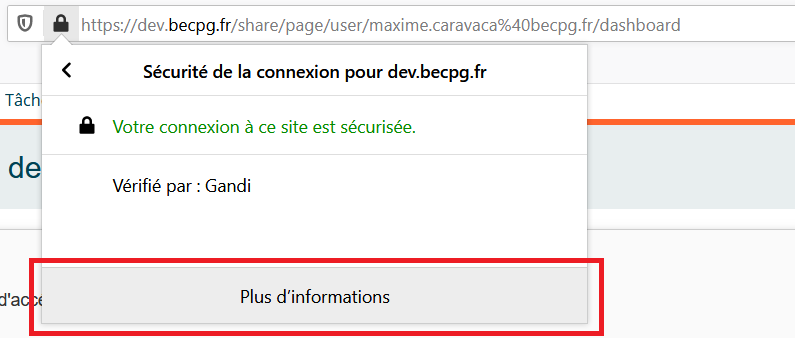
- Click on "More information"
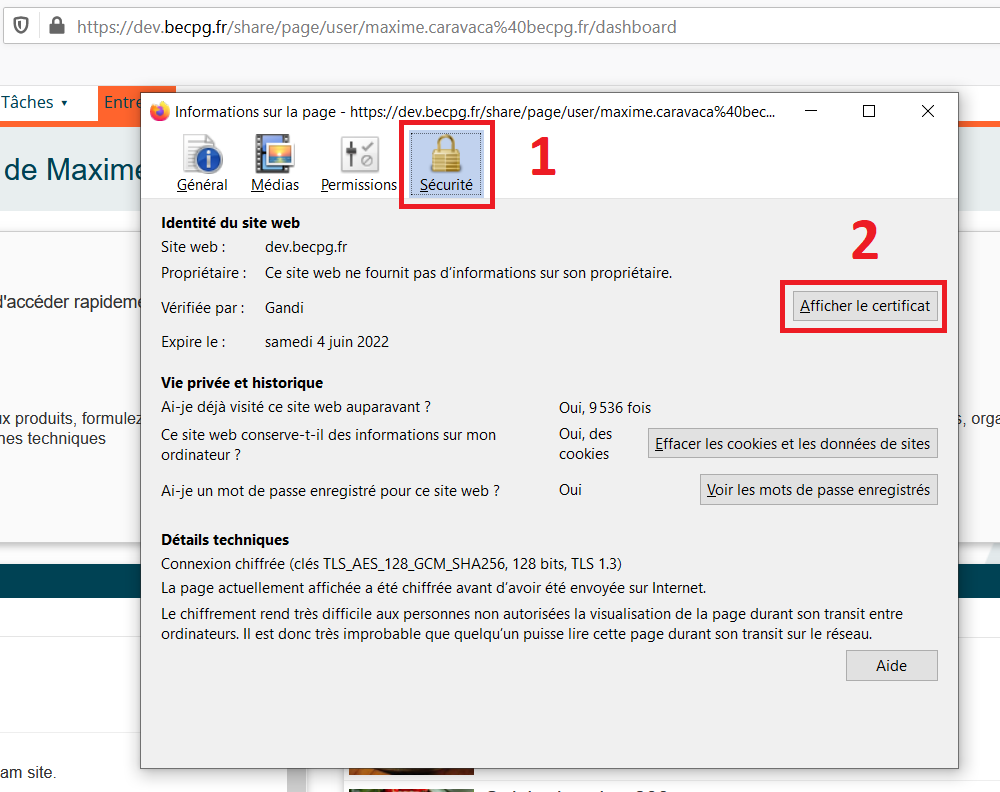
- Click on "Display certificate"
- Go to the section "Miscellaneous" and download the certificate PEM (cert)
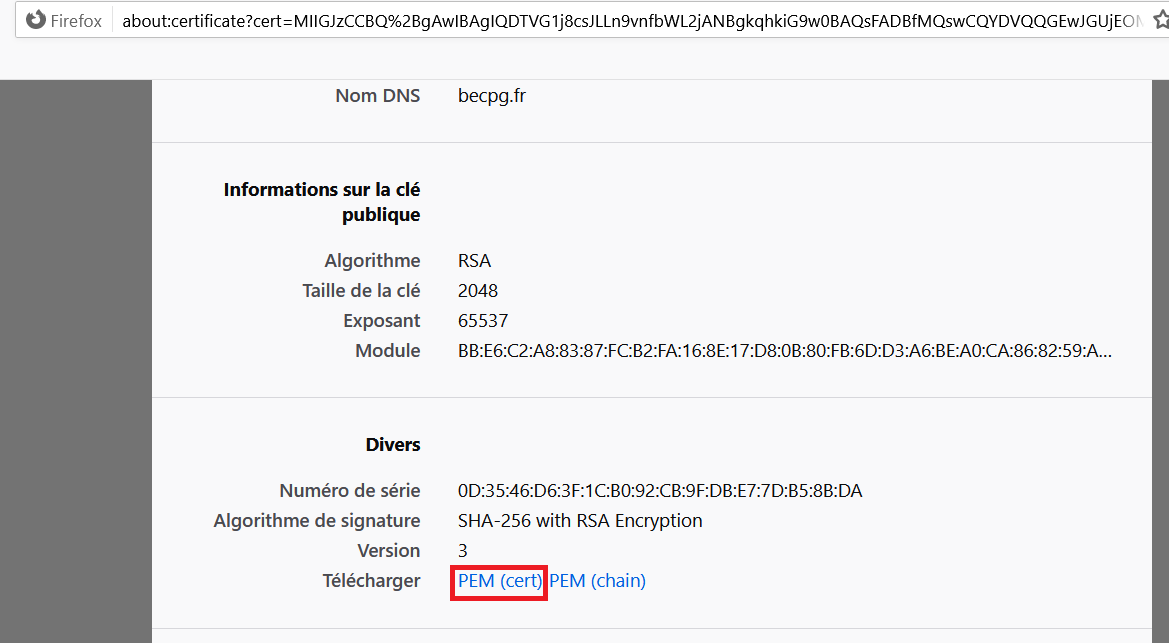
- Save the file in a folder on your computer
Open a terminal in your Java folder.
Note: It may be necessary to open a terminal with administrator rights. Search for "cmd" in your Windows search bar, right-click and select "Open as administrator".
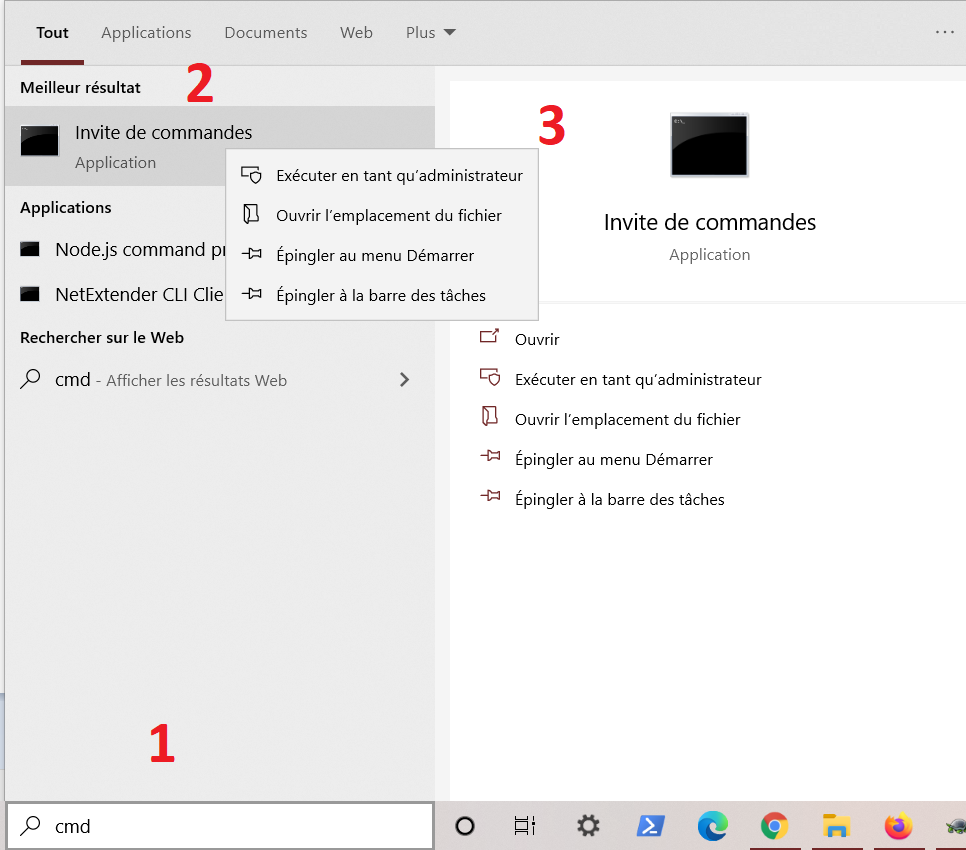
Navigate to the Java folder using the cd command. Example with a Java folder located at C:\Program Files\Java\jre1.8.0_241.
Check if bin\keytool and lib\security\cacerts exist in the Java folder.
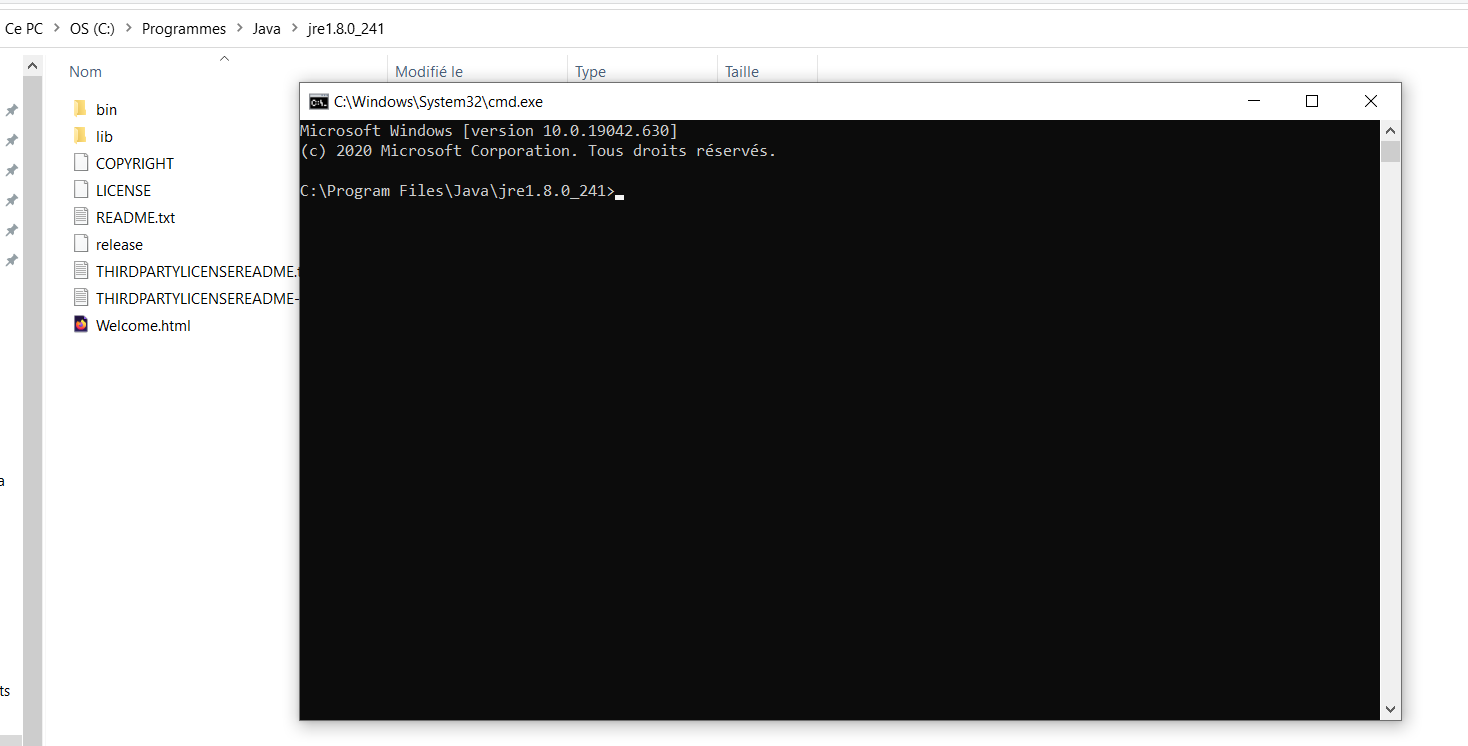
Once the terminal is open, use the following command:
bin\keytool -import -alias {certificate_name} -file {pem_file_location} -keystore lib\security\cacerts
Example with a certificate named becpg.pem located in C:\tmp with alias becpg:
bin\keytool -import -alias becpg -file C:\tmp\becpg.pem -keystore lib\security\cacerts
The default password is: changeit
Follow the steps displayed by the terminal. Once installed, verify the installation:
bin\keytool -list -v -alias becpg -keystore lib\security\cacerts