Product repository
General information
The Product repository area is available from the tab beCPG > Product repository or directly on collaborative sites such as the “Products in development” site :
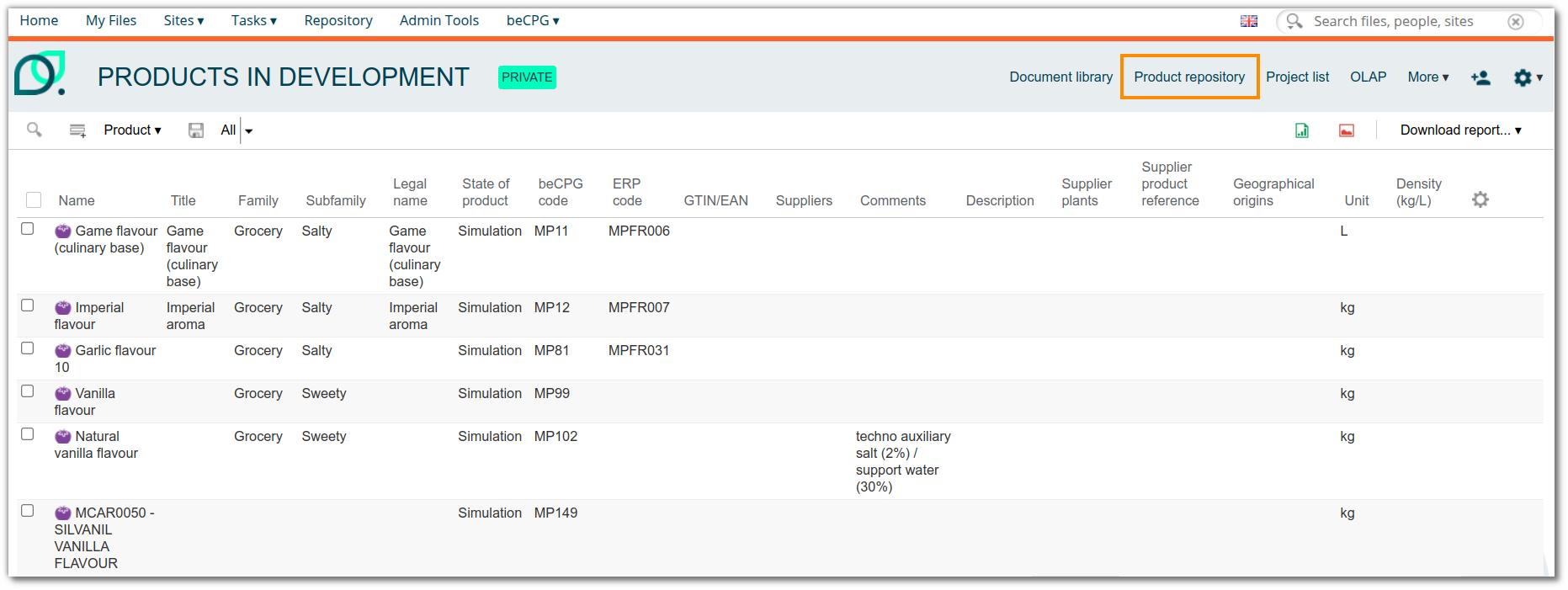
Note : if the Product repository space is not already present on a site, you can add it by customising the site's dashboard. Click here.
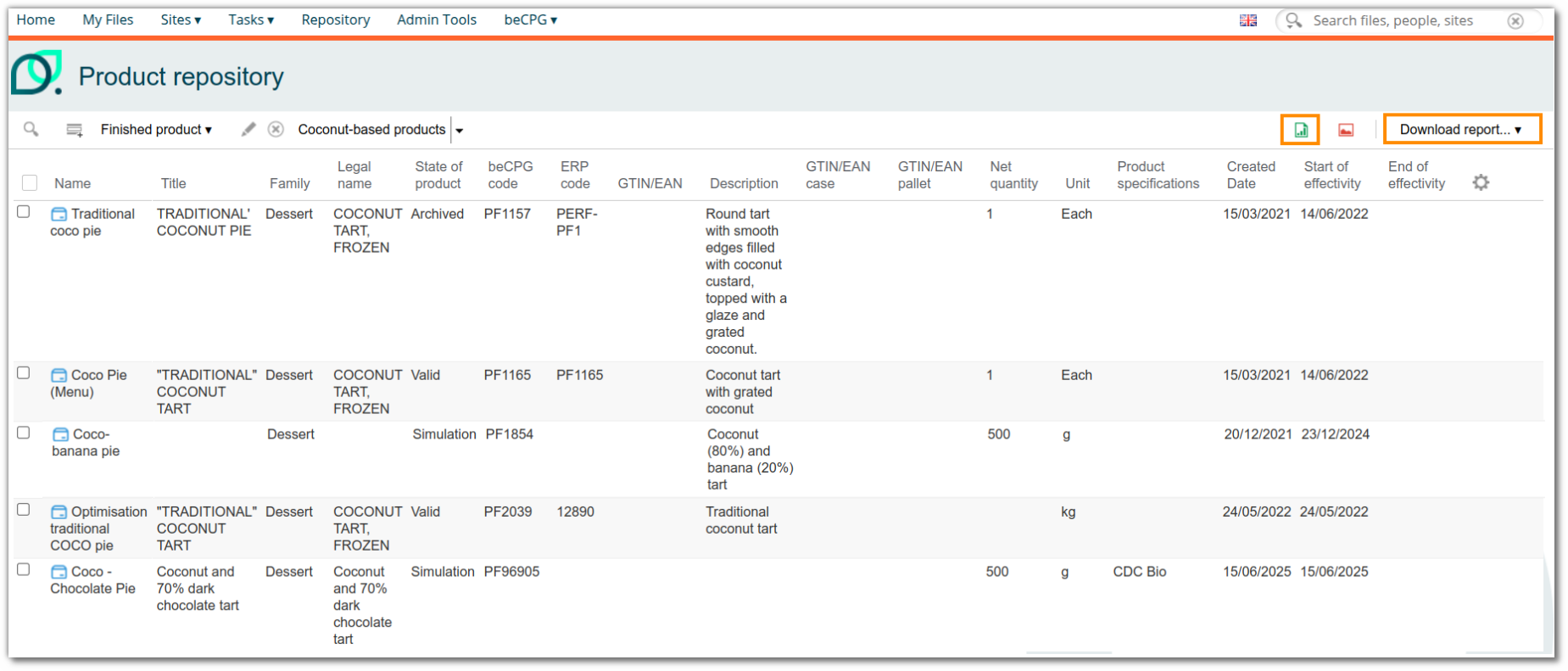
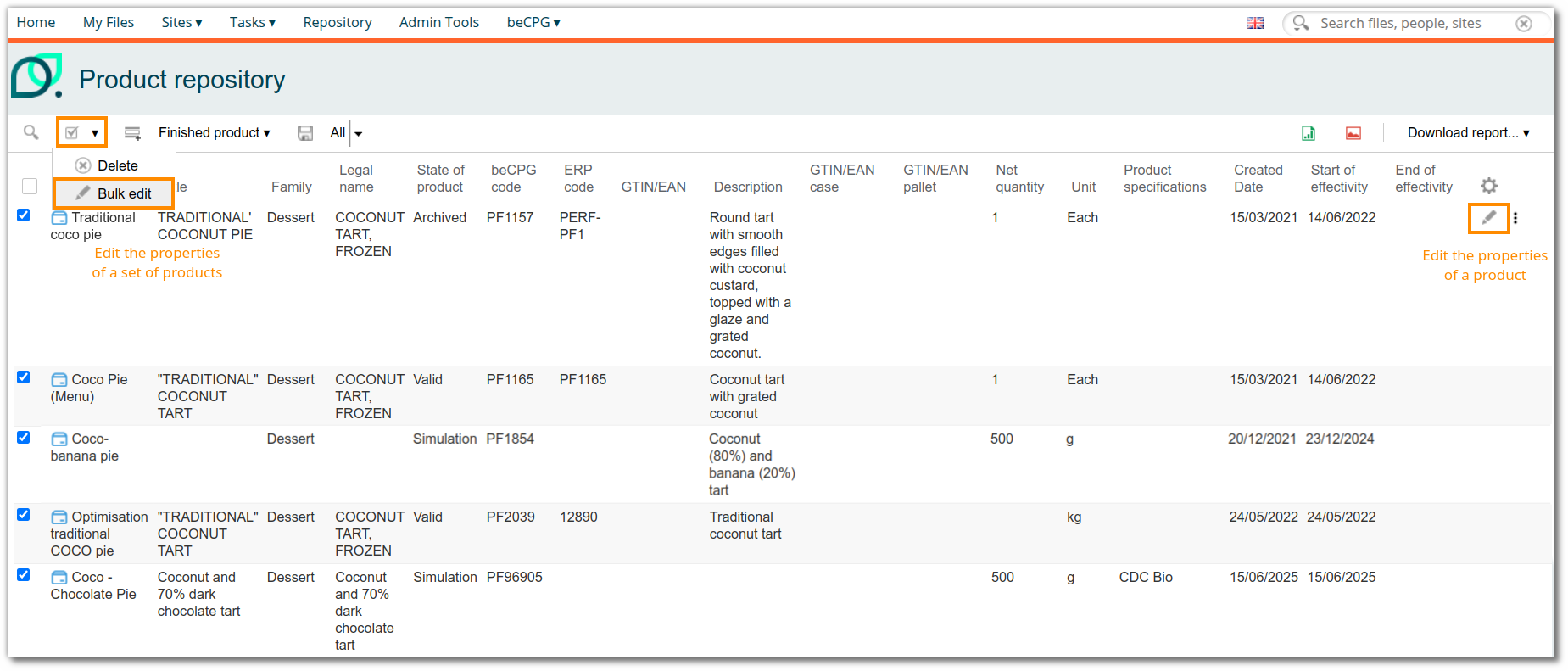
This view shows product properties in table form, with one row per product. Properties can be modified either individually or for all products using the Bulk edit function.
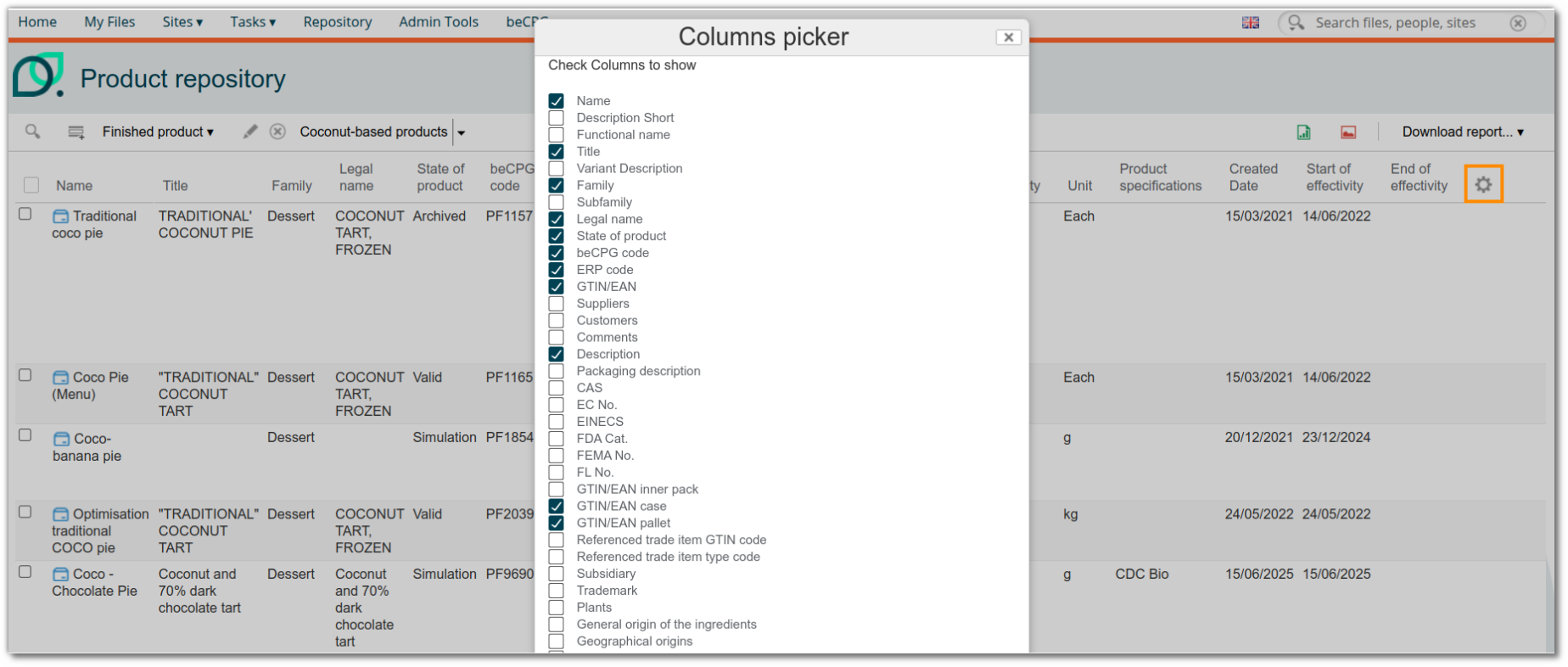
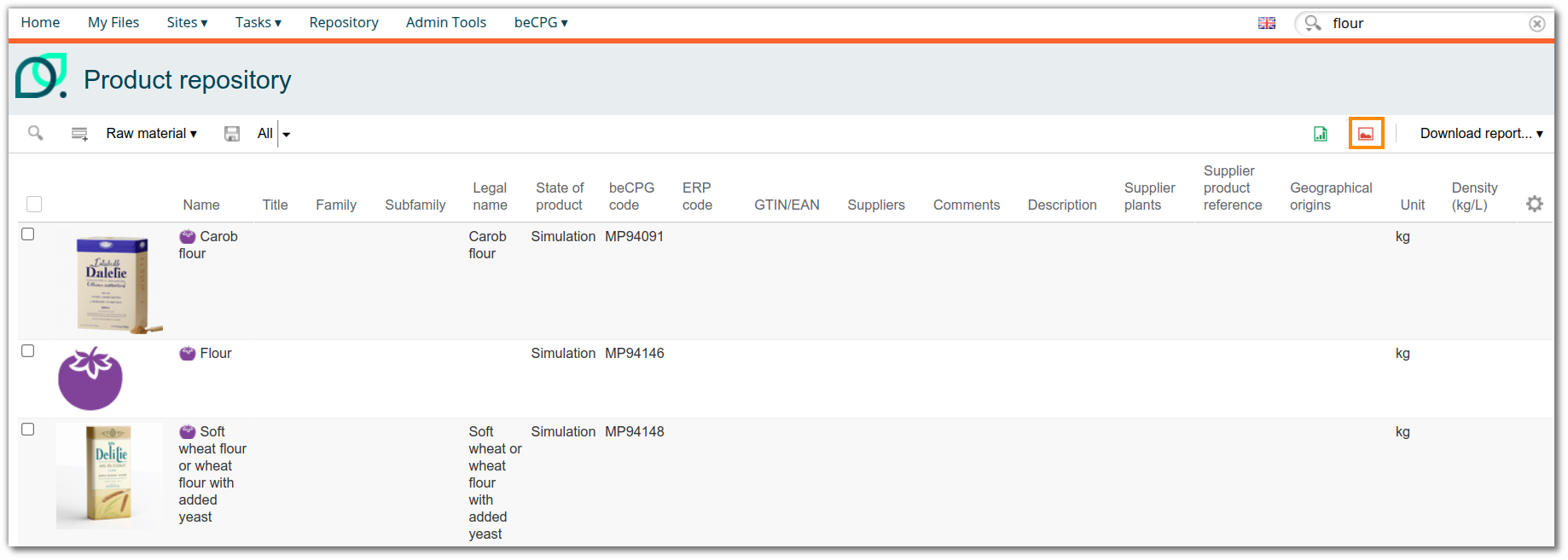
The list of columns that can be viewed in the Product repository area can be customised according to the properties available for the entity in question. This provides a quick view of product properties, unlike the bulk-edition tool where columns have to be selected for each search.
The red button at the top right of the Product repository area provides a preview of the images linked to the products. If there is no image, the entity's logo is displayed by default.
Filters
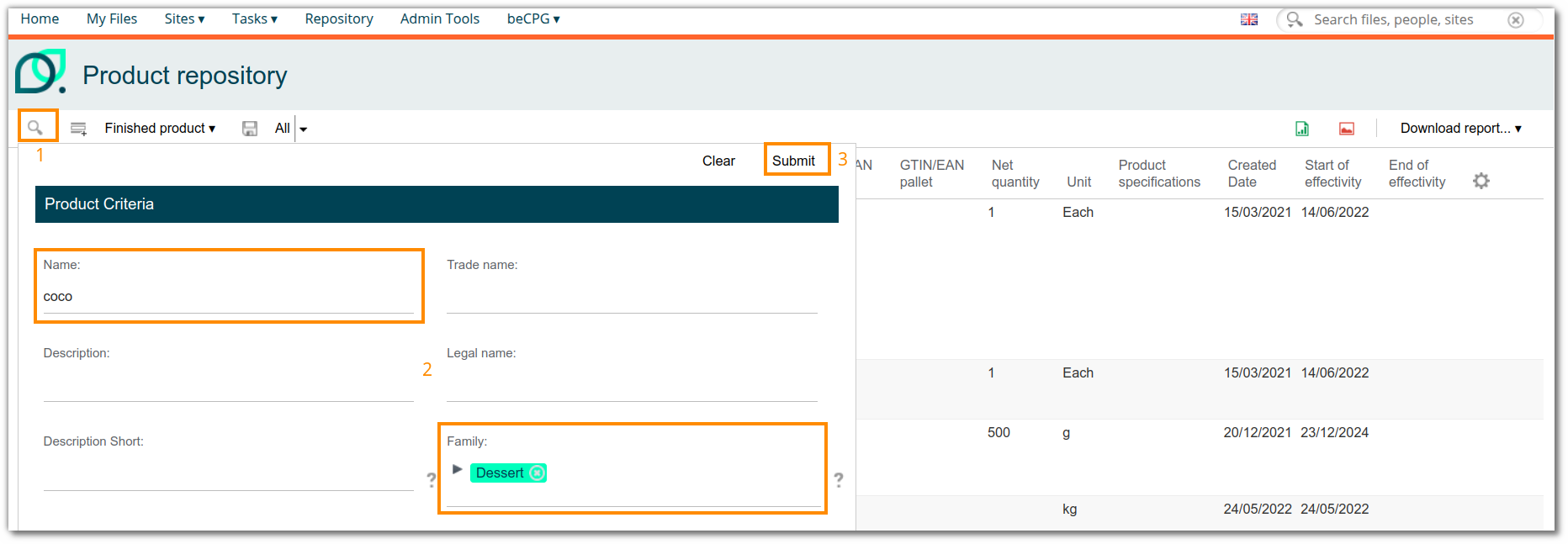
The advantage of the Product repository area is that you can use the same filters as in the advanced search, allowing you to filter by type of entity (ex : Finished product) and according to different criteria such as :
- Product criteria (ex : Family)
- Allergens and label claims
- Criteria on ingredients
- Etc.
For more information on advanced search and the filters available, click here.
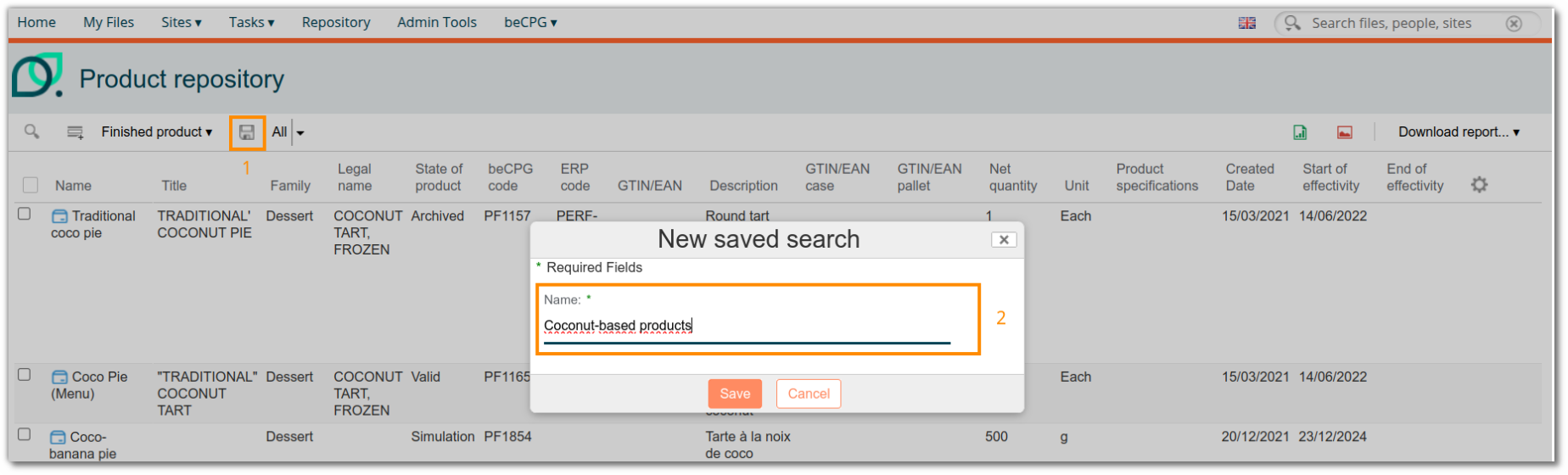
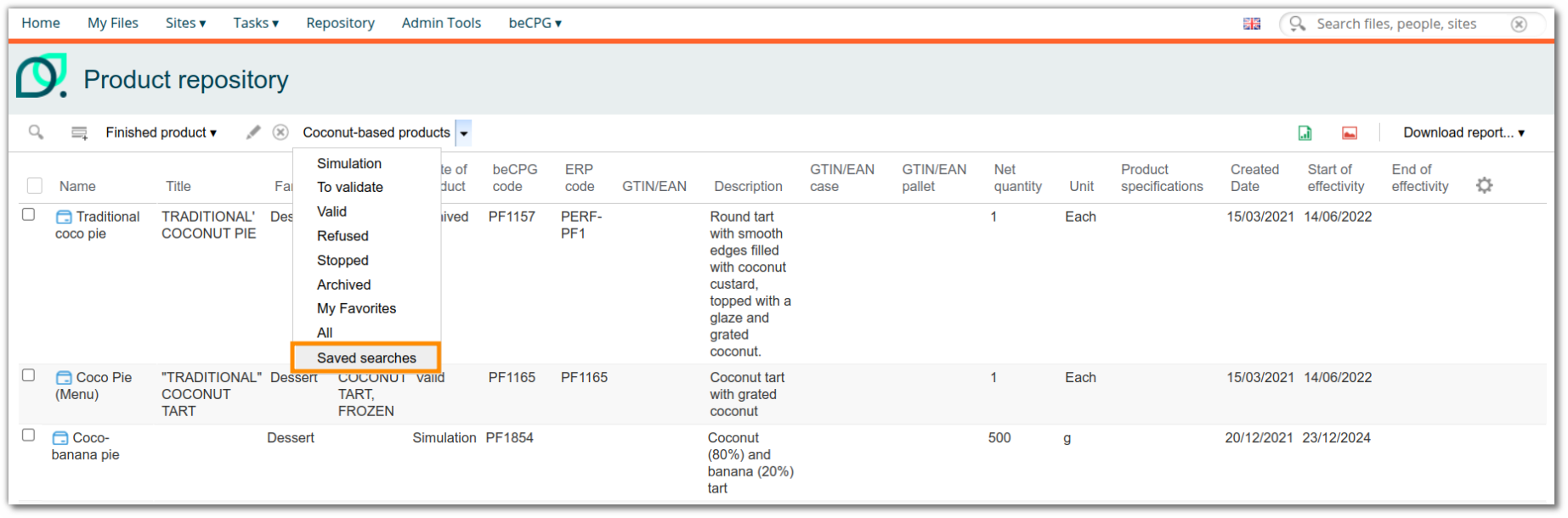
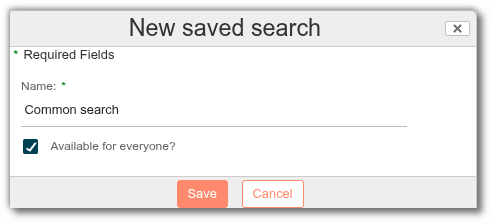
Once the specific filters have been selected, they can be saved using the “Create a new saved search” function. The search thus created is then available, by type of entity, in the “Saved searches”.
Example :
- A filter has been added which only selects finished products belonging to the “Dessert” family whose name contains “coco”.
- The filter is then saved and named “Coconut based products”.
- The filter can then be used several times, modified and consulted in the “Saved searches” tab for all users.
To save a search that is accessible to all users, you must belong to the ‘beCPG Saved Search Managers’ group. Once you are a member, you can enable the ‘Available to all?’ option to make it visible to everyone. Please note that once the search has been created, it is no longer possible to enable or disable the ‘Available to all?’ option.
Important note: Only members of the “beCPG Saved Search Managers” group can make a search public via the “Available for everyone?” option. Please note: this choice is final once the search has been created; it is not possible to change its visibility at a later date.
Extractions and reports
As with the advanced search, you can export the results in Excel format using the "Download report" button, depending on the rights associated with your profile. The reports available are identical to those in the advanced search. You can also extract data from selected properties using the green Excel button at the top right of the screen.